> For the complete documentation index, see [llms.txt](https://docs.violetlabs.com/llms.txt). Markdown versions of documentation pages are available by appending `.md` to page URLs; this page is available as [Markdown](https://docs.violetlabs.com/features/requirements/getting-started.md).
# Getting started
This page outlines the basics of creating, viewing, editing, organizing and commenting on requirements. For additional guidance on setting up programs, systems, and general recommendations, see [Best practices](/features/requirements/best-practices.md).
### Create a Program
First, you'll need to create a Program.
[Programs](/features/programs.md) also enable granular permissions to Requirements and other features.
#### Set up your team
Next, you'll need to add team members, assign roles, and (optionally) create groups. Groups can be used to grant permissions to specific requirements or systems.
External users (such as customers or partners) can be added as [**Guests**](/resources/administrative/invite-your-team.md#guest-users). Guests can view requirements and leave comments, but are restricted from viewing other data or features in Violet.
#### Define Systems
[Systems](/features/requirements/systems.md) elements contribute to user permissions and grouping, filtering and sorting Violet Requirements. User groups or individual users assigned to systems will be able to edit requirements associated with the system; these users are designated requirement owners.
#### Create custom fields and relationships
Create [Custom fields](/features/requirements/custom-fields.md) or relationships for requirements or verifications in the [**Program**](/features/programs.md) configuration pane to enable your organization’s unique requirement management approach.
Custom columns could be added to help transition data out of an external tool and [Import & export](/features/requirements/import-and-export.md) into Violet for development going forward, e.g.
### Creating Requirements
*(Need to import existing requirements from another tool or file? Check out* [Import & export](/features/requirements/import-and-export.md) *for instructions).*
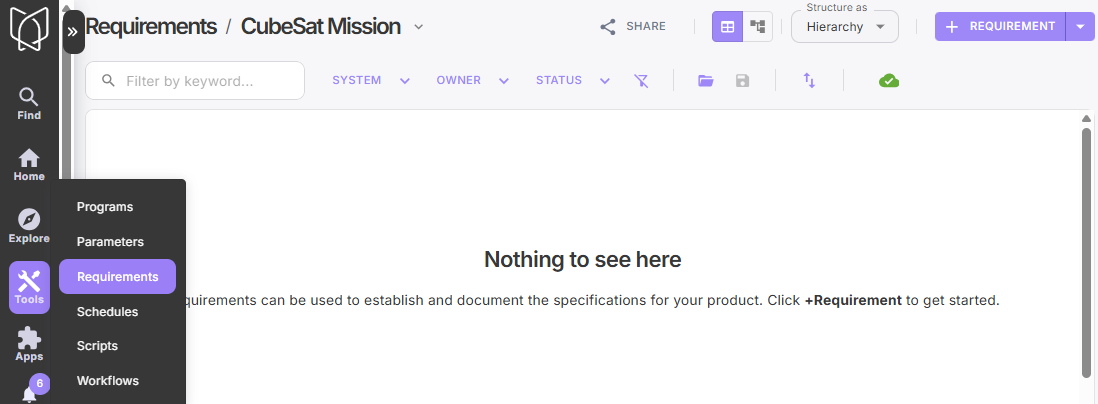
To create new requirements natively in Violet, navigate to the requirements module and select the program of interest. Click the **+Requirement** button to add your first requirement and fill in appropriate attributes. Use the pulldown menu on the **+Requirement** button to add folders, too.
Click the Purple + Button in the lower right to enable quick-addition of requirements in the table view. This also **Enables Cell Editing,** permitting you to populate attributes from this tabular view.
To add a nested requirement, right click on the parent and select "Add Nested Requirement."
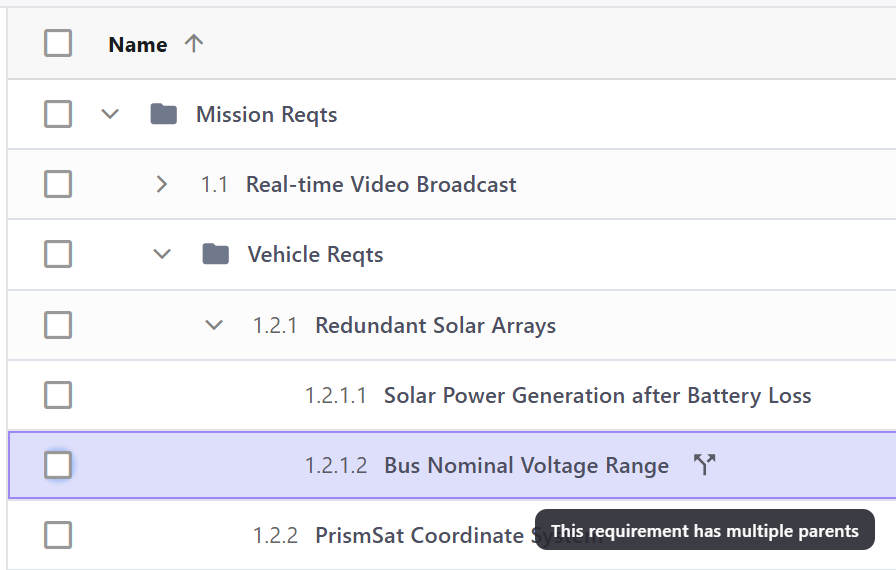
To add one or more additional parents to a requirement, double click on the requirement to open the side panel. Click Edit to modify the requirement, then click the edit button for the parent attribute and select additional parents as appropriate. Click save to implement the changes. Requirements with multiple parents will show a Fork icon in the Name column.
### Viewing Requirements in a Table
Click the Columns side bar to open a panel and choose which columns you wish to view in the table. Drag and drop the attributes in the list to change the column order. Once you have a table view you like (e.g., one emphasizing verification), click the **Save** button to quickly return to that table in the future or make that view available for others on your team. Open a previously saved view by clicking the **Open** folder button.
Use System, Owner, or Status filter options in the main toolbar to filter the table accordingly.
{% embed url="" %}
### Editing Requirements
* **Edit in Requirements Details Pane**: Double click on a requirement in the table view to open the Edit Requirement pane.
* **Edit in Tabular View**: Click the pencil icon in the main toolbar to **Enable Cell Editing**, then double click in a table cell to open a text editor or pulldown menu to populate attributes.
#### Copy/Paste Attribute Values
Enter **Cell Edit Mode,** then use CTRL+C and CTRL+V to copy attribute values from one requirement to another. This can be utilized for standard Violet attributes and [Custom fields](/features/requirements/custom-fields.md), as well as relationships.
#### Bulk Editing Attributes
Select one or more requirements checkboxes, then right click near the column/attribute you want to change. In the menu, select the "Update \[column name] for selected rows" and select your new value.
#### Bulk Assigning Owners, Approvers and Verifiers
Select one or more requirements checkboxes, then click the **Add Assignee** or **Owners** button in the main toolbar. Enter the appropriate owner, approver and verifier(s), applicable to all selected requirements, then click save.
### Organizing Requirements
Click the **Enable Organize** button in the main toolbar to allow you to drag and drop one or more requirements and folders into the appropriate sorting order and nesting hierarchy. See [Best practices](/features/requirements/best-practices.md) for additional guidance on organizing requirements.
{% embed url="" %}
### Commenting
{% columns %}
{% column %}
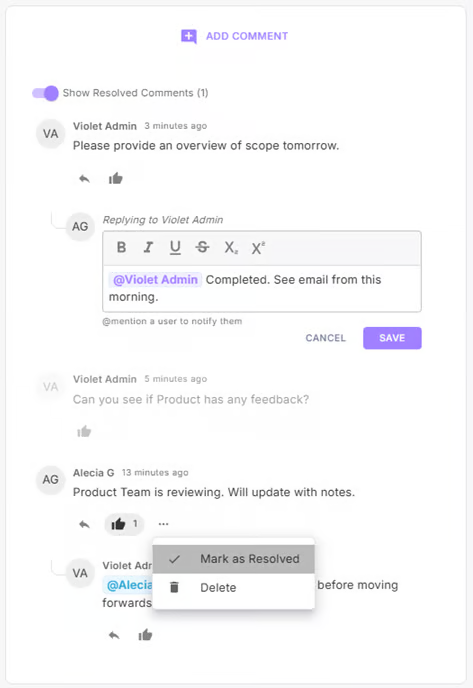
* Right click on a requirement in the table view and select "Add Comment"
* Double click on a requirement to open the side panel, then find the Comments tab.
* Mention ("@username") a coworker to send them a notification about your comment
* Like and reply to comments made by others on the team
* Mark comments resolved
{% endcolumn %}
{% column %}
{% endcolumn %}
{% endcolumns %}
{% embed url="" %}
---
# Agent Instructions
This documentation is published with GitBook. GitBook is the documentation platform designed so that both humans and AI agents can read, navigate, and reason over technical content effectively. Learn more at gitbook.com.
## Querying This Documentation
If you need additional information that is not directly available in this page, you can query the documentation by asking a question.
Perform an HTTP GET request on the following URL with the `ask` and `goal` query parameters:
```
GET https://docs.violetlabs.com/features/requirements/getting-started.md?ask=&goal=
```
`ask` is the immediate question: it should be specific, self-contained, and written in natural language.
`goal` is what the user is ultimately trying to achieve, the reason they need the answer. Sharing it helps GitBook give you a better, more relevant answer. A goal is most helpful when it describes the outcome the user wants rather than restating the question. For example, with `ask=how do I create an API token`, a goal like `automate deployments from our CI pipeline` lets GitBook tailor the answer to that use case.
The response will contain a direct answer to the question and relevant excerpts and sources from the documentation.
Use this mechanism when the answer is not explicitly present in the current page, you need clarification or additional context, or you want to retrieve related documentation sections.