> For the complete documentation index, see [llms.txt](https://docs.violetlabs.com/llms.txt). Markdown versions of documentation pages are available by appending `.md` to page URLs; this page is available as [Markdown](https://docs.violetlabs.com/integrations/integrations-dashboard.md).
# Integrations Dashboard
The **Integrations Dashboard** provides a centralized view of all integrated applications, along with detailed information about fetches and syncs. From this interface, users can add or remove integrations, configure settings, establish data syncs, and manually refresh or sync data.
Top Toolbar and Performance Metrics
The top toolbar displays performance metrics for Fetches and Syncs, along with several action buttons that support configuration, scheduling, and running processes on demand.
**Buttons**
* - Create a new integration
* REFRESH ALL - Refresh all data fetches
* PAUSE ALL - Stop all integrations from executing future scheduled fetches and syncs
{% hint style="info" %}
Note: To un-pause, resume each integration individually using the "Resume" button
{% endhint %}
**Performance Metrics**
* Displays the number of recent Successful Fetches, Failed Fetches, currently Running Fetches and Paused Fetches.
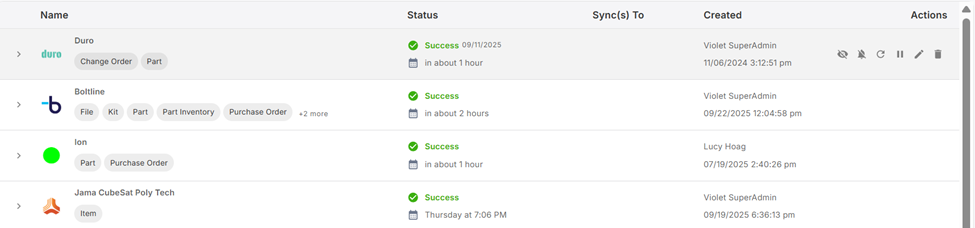
Integration Table
**Columns**
* **Name:** Name of Application and the data types Violet will fetch from the Application. The data types are listed below the application name.
* **Status**: Status of ongoing or most recent fetch.
* **Syncs To**: If the integration is sending data to other applications, they will be listed here.
* **Created**: Name of user who created the integration and the date and time it was created.
**Actions**: Allow you to edit the integration configuration.
* - **Subscribe To:** Subscribe to receive updates about fetch events for the selected integration in a daily email.
* - **Configure Sync Event Subscriptions:** Subscribe to receive information about sync events for the selected integration in a daily email.
* From the following window, you can choose what type of events will be included in the subscription email -> **Errors**, **Health** **Information**, or **Warnings**.
* - **Fetch Updates:** Run a fetch. Click button again mid-fetch to cancel/stop the fetch process.
* - **Pause:** Pauses scheduled fetches.
* - **Resume:** Resumes scheduled fetches.
* - **Edit**: Opens the *Configure App* menu, which allows you to reconfigure the integration. From this menu, you can change the application, adjust data types, and define how often to run or refresh Fetches.
*  - **View Change History:** Review who made what changes to the integration configuration, when.
{% hint style="info" %}
More than one integration can be created for a given application in order to fetch different data types on different frequencies, support different permission schemes for different data types etc.
{% endhint %}
Integration Metrics
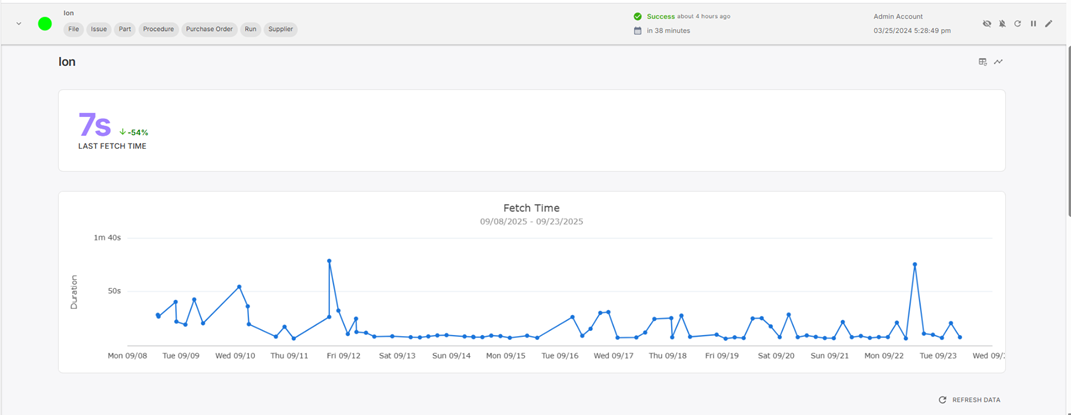
Click on an integration row to view its performance metrics, including the fetch and sync duration over time.
**Buttons**
* **Refresh Data:** Click this button (located under the Fetch Time graph) to run a **Full Fetch** of all data from the integration. Unlike the “Run a Fetch” button which only looks for changes since the last fetch, the Refresh Data button will review all data for the requested data type(s).
* If integration is set to **Push Data** there is also an on-demand push button below the graph.
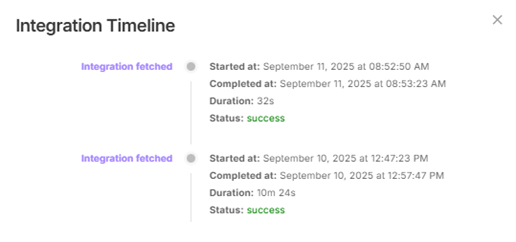
* **Integration Timeline:** In the top right corner of the Integration Health Metrics view allows to view the details for each Fetch or Pull.
{% hint style="info" %}
To see failures in data *syncs*, navigate to the timeline of the *source integration* for that data sync (ie. where the data originates). To see more details about the failure, expand the status to show the error message. Click on **Entity Link** to navigate to the specific entity that failed.
{% endhint %}
---
# Agent Instructions
This documentation is published with GitBook. GitBook is the documentation platform designed so that both humans and AI agents can read, navigate, and reason over technical content effectively. Learn more at gitbook.com.
## Querying This Documentation
If you need additional information that is not directly available in this page, you can query the documentation by asking a question.
Perform an HTTP GET request on the following URL with the `ask` and `goal` query parameters:
```
GET https://docs.violetlabs.com/integrations/integrations-dashboard.md?ask=&goal=
```
`ask` is the immediate question: it should be specific, self-contained, and written in natural language.
`goal` is what the user is ultimately trying to achieve, the reason they need the answer. Sharing it helps GitBook give you a better, more relevant answer. A goal is most helpful when it describes the outcome the user wants rather than restating the question. For example, with `ask=how do I create an API token`, a goal like `automate deployments from our CI pipeline` lets GitBook tailor the answer to that use case.
The response will contain a direct answer to the question and relevant excerpts and sources from the documentation.
Use this mechanism when the answer is not explicitly present in the current page, you need clarification or additional context, or you want to retrieve related documentation sections.


 - Create a new integration
* REFRESH ALL - Refresh all data fetches
* PAUSE ALL - Stop all integrations from executing future scheduled fetches and syncs
{% hint style="info" %}
Note: To un-pause, resume each integration individually using the "Resume" button
{% endhint %}
**Performance Metrics**
* Displays the number of recent Successful Fetches, Failed Fetches, currently Running Fetches and Paused Fetches.
- Create a new integration
* REFRESH ALL - Refresh all data fetches
* PAUSE ALL - Stop all integrations from executing future scheduled fetches and syncs
{% hint style="info" %}
Note: To un-pause, resume each integration individually using the "Resume" button
{% endhint %}
**Performance Metrics**
* Displays the number of recent Successful Fetches, Failed Fetches, currently Running Fetches and Paused Fetches.
 - **Subscribe To:** Subscribe to receive updates about fetch events for the selected integration in a daily email.
*
- **Subscribe To:** Subscribe to receive updates about fetch events for the selected integration in a daily email.
*  - **Configure Sync Event Subscriptions:** Subscribe to receive information about sync events for the selected integration in a daily email.
* From the following window, you can choose what type of events will be included in the subscription email -> **Errors**, **Health** **Information**, or **Warnings**.
- **Configure Sync Event Subscriptions:** Subscribe to receive information about sync events for the selected integration in a daily email.
* From the following window, you can choose what type of events will be included in the subscription email -> **Errors**, **Health** **Information**, or **Warnings**.

 - **Fetch Updates:** Run a fetch. Click button again mid-fetch to cancel/stop the fetch process.
*
- **Fetch Updates:** Run a fetch. Click button again mid-fetch to cancel/stop the fetch process.
*  - **Pause:** Pauses scheduled fetches.
*
- **Pause:** Pauses scheduled fetches.
*  - **Resume:** Resumes scheduled fetches.
*
- **Resume:** Resumes scheduled fetches.
*  - **Edit**: Opens the *Configure App* menu, which allows you to reconfigure the integration. From this menu, you can change the application, adjust data types, and define how often to run or refresh Fetches.
*  - **View Change History:** Review who made what changes to the integration configuration, when.
- **Edit**: Opens the *Configure App* menu, which allows you to reconfigure the integration. From this menu, you can change the application, adjust data types, and define how often to run or refresh Fetches.
*  - **View Change History:** Review who made what changes to the integration configuration, when.

 **Integration Timeline:** In the top right corner of the Integration Health Metrics view allows to view the details for each Fetch or Pull.