> For the complete documentation index, see [llms.txt](https://docs.violetlabs.com/llms.txt). Markdown versions of documentation pages are available by appending `.md` to page URLs; this page is available as [Markdown](https://docs.violetlabs.com/features/requirements/peer-reviews.md).
# Peer reviews
**Peer Reviews** provide the opportunity for collaborative Requirement evaluation. Users can initiate structured reviews by selecting Requirements for feedback and inviting participants. Reviewers can then provide comments and collaborate with the Review Creator. Comments remain within the review and do not alter the original requirements. Reviewers can submit feedback and continue commenting until the review is officially closed.
### Initiate a Peer Review
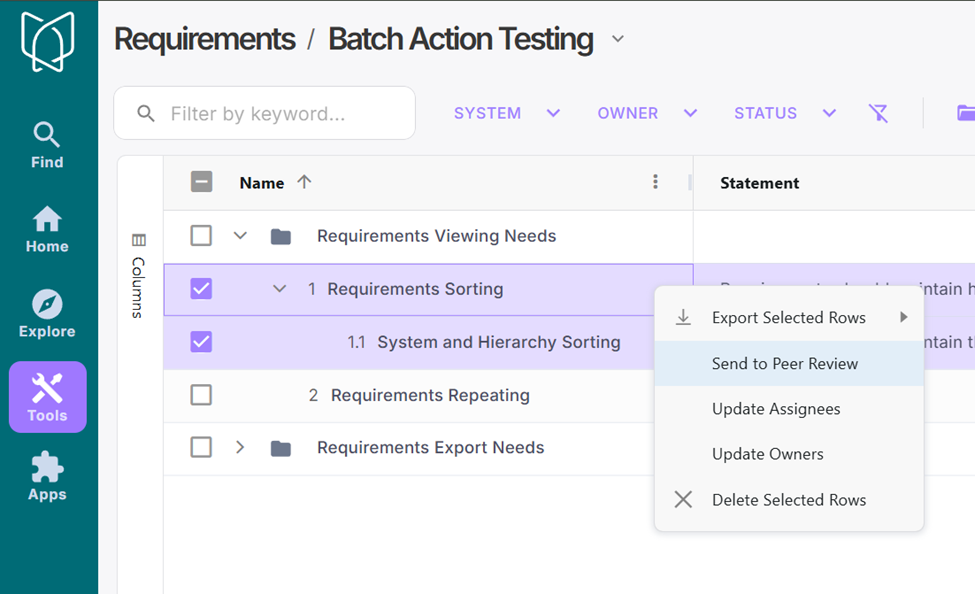
1. Select requirement(s) to review. Right click and choose **Send to Peer Review**.
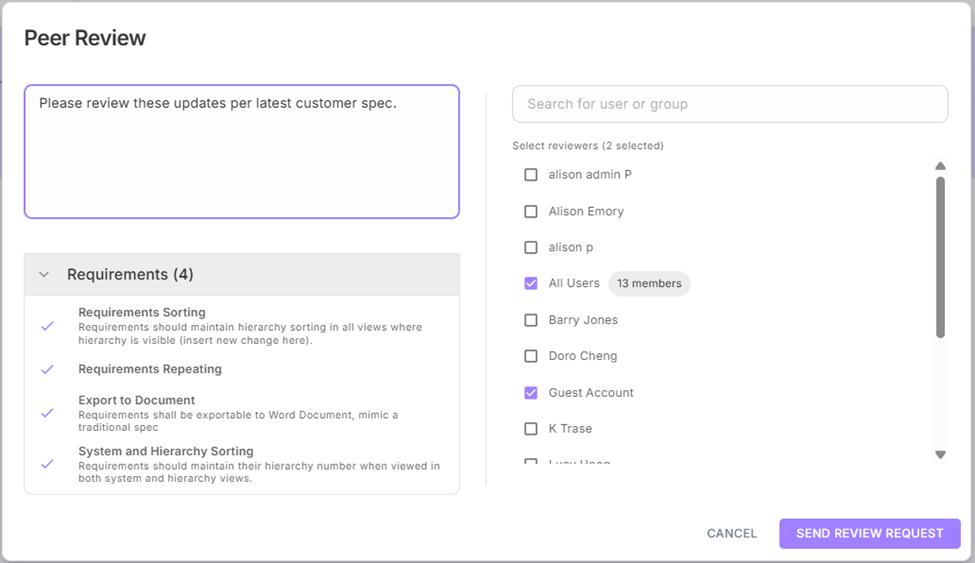
2. Set up the review request from the **Peer Review** window.
* Add a descriptive message for the reviewers.
* Under **Requirements** you can select or unselect Requirements for review.
* Select the individuals or user groups to invite to the peer review.
* Users already assigned as Requirement Approvers are included by default, but can be removed
* The full list of possible reviewers is based on permissions set for the Requirements in the Team Members field for the [Programs](/features/programs.md). (See: **Tools - Program - View and Edit Program**.)
3. Click Send **Review Request**. This will send an automated email to the selected reviewers with a link to the Peer Review.
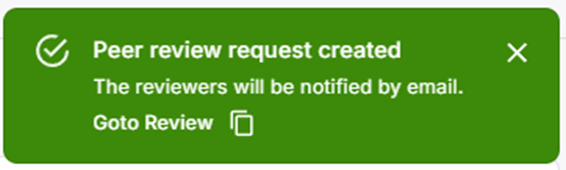
4. A green **Peer Review Request Created** notification will appear in the top right corner of the window. Click the **Go to Review** to navigate to the Review Page for the newly created Peer Review.
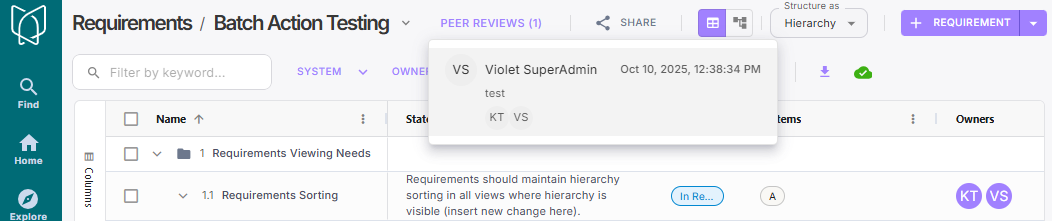
Requirements that are part of an active peer review are labeled:
### Navigate to open reviews
After a review is created, a drop-down menu will appear in the upper right of the panel where you can select from the open reviews. A short description of the review message, the Review Creator, and participants are listed.
### Manage reviews
The "Go to Review" link and Peer Review menu takes the Peer Review creator to the Peer Review page. From here you can monitor the status of the peer review process, add comments, reply to reviewer comments and close the review.
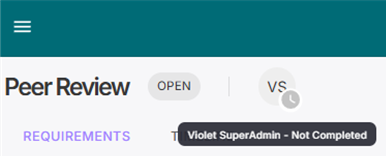
* Everyone who has been invited to review the requirement(s) will be visible in the top left corner. Hover over a user icon to see the status of their review.
* In the **Comments** section on the right side of the window, the review originator can review participants' review comments, create a new comment, edit/delete comments and mark a comment as resolved.
* Use **Show Resolved Comment toggle** to hide or display resolved comments.
* Standard commenting features apply (ex: Tag users with "@username" to notify them about your question).
* Click **Close Review** when Peer Review is completed.
* Users are not required to close out collected comments for the peer review to be closed.
Note, if you make updates to a requirement that's undergoing a review, the new version is immediately available to review participants as they occur.
### Receive and complete reviews
Participant reviewers can navigate to the Peer Review page using the link in their review invitation email, where they can then:
1. Review requirements
1. Use the **Only My Requirements** toggle to display only the requirements for which you are an approver/owner or that you have created.
2. Add, view, reply to [Comments](/features/requirements/getting-started.md#commenting-on-requirements)
* Comments are accessible on the right side of the Review page and **are only accessible in the Peer Review and not in the requirements themselves.**
Click **Finish Review** button in the top right corner of the screen to close out Peer Review.
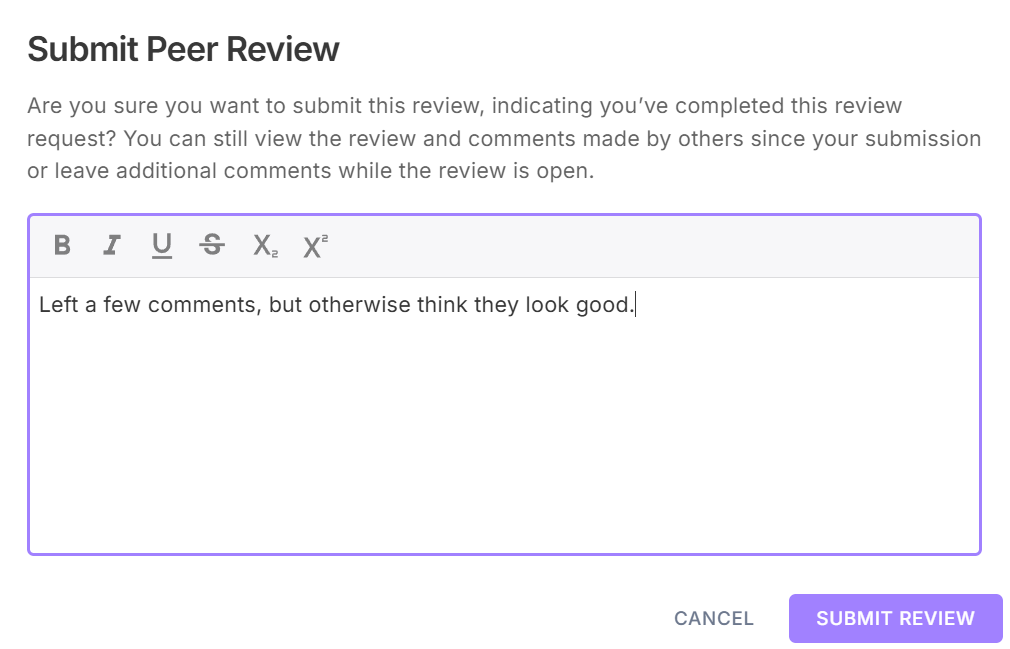
1. This opens the **Submit Peer Review** window where you can summarize your actions and share any larger feedback.
* Once submitted your peer review status will change from **Pending** to **Complete**.
{% hint style="success" %}
Note: Even after submission, participants can still view other comments and add new ones while the review remains open.
{% endhint %}
### Review timeline
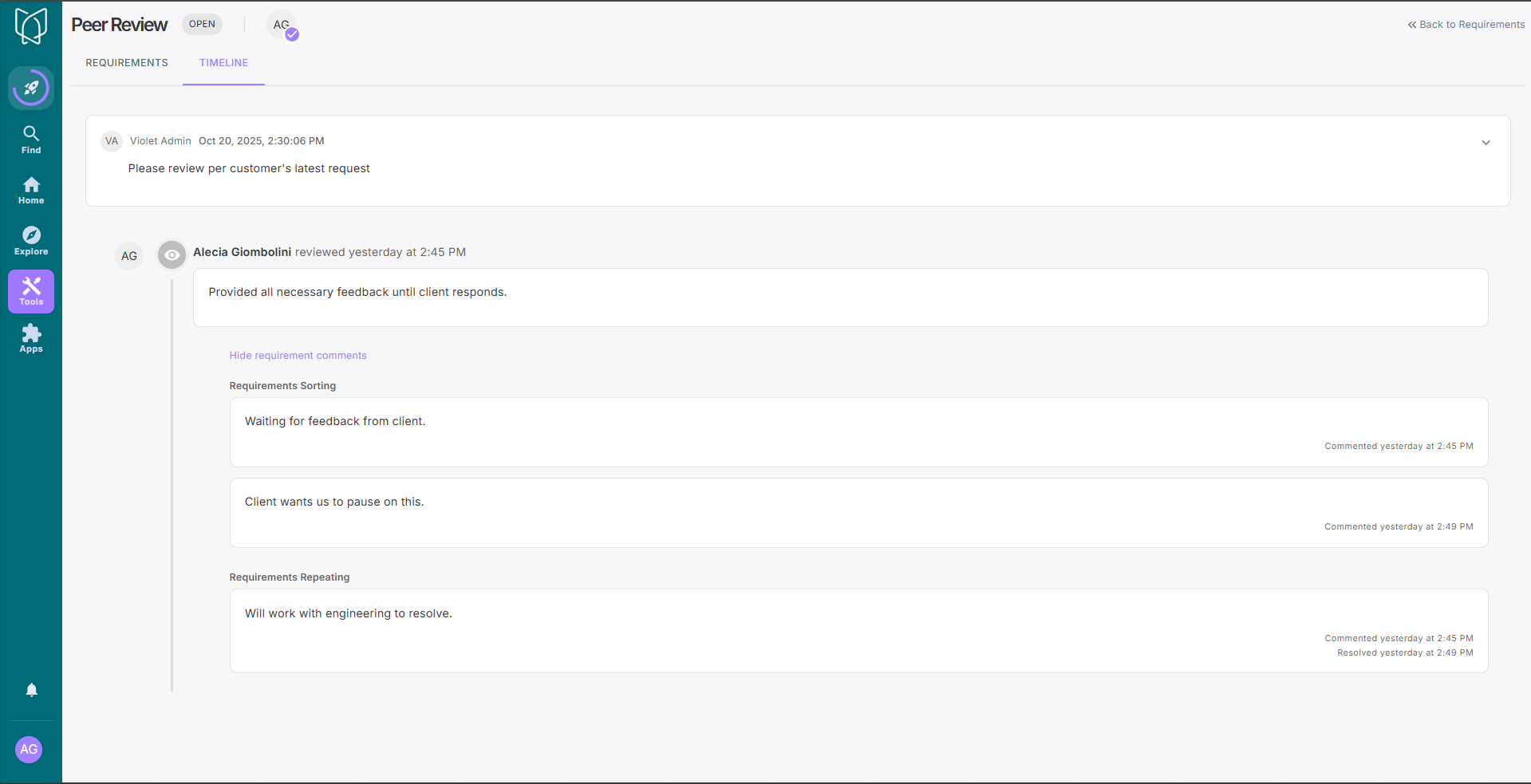
View a timeline of review notes and review submissions by participants, including their comments on the requirements.
---
# Agent Instructions
This documentation is published with GitBook. GitBook is the documentation platform designed so that both humans and AI agents can read, navigate, and reason over technical content effectively. Learn more at gitbook.com.
## Querying This Documentation
If you need additional information that is not directly available in this page, you can query the documentation by asking a question.
Perform an HTTP GET request on the following URL with the `ask` and `goal` query parameters:
```
GET https://docs.violetlabs.com/features/requirements/peer-reviews.md?ask=&goal=
```
`ask` is the immediate question: it should be specific, self-contained, and written in natural language.
`goal` is what the user is ultimately trying to achieve, the reason they need the answer. Sharing it helps GitBook give you a better, more relevant answer. A goal is most helpful when it describes the outcome the user wants rather than restating the question. For example, with `ask=how do I create an API token`, a goal like `automate deployments from our CI pipeline` lets GitBook tailor the answer to that use case.
The response will contain a direct answer to the question and relevant excerpts and sources from the documentation.
Use this mechanism when the answer is not explicitly present in the current page, you need clarification or additional context, or you want to retrieve related documentation sections.