> For the complete documentation index, see [llms.txt](https://docs.violetlabs.com/llms.txt). Markdown versions of documentation pages are available by appending `.md` to page URLs; this page is available as [Markdown](https://docs.violetlabs.com/apps/s/solidworks-pdm.md).
# Solidworks PDM
Solidworks PDM is a data management system that helps users store, organize and manage engineering data and documents. Learn more at www\.solidworks.com.
## Connect Solidworks PDM in Violet
We provide different methods for integrating with Solidworks PDM:
1. [**Live Integration**](#live-integration)
1. Our live integration fetches data directly from your Solidworks PDM server instead of via the API. This means it works with any tier of Solidworks PDM - it does *not* require you to have PDM Professional.
2. [**Manual** **Import**](#manual-import)
1. Export and import a [.csv file](#manual-upload-.csv-file-import) of your BOM
3. [**Solidworks PDM Plugin**](#solidworks-pdm-plugin)
1. Coming soon!
### Live Integration
In our live integration, Violet queries the SQL server hosting your Solidworks PDM vault directly. Like any of our integrations, this can occur on a schedule and on demand. Today Violet fetches part, part revision and assembly (BOM) data.
Follow the instructions below to get started.
{% stepper %}
{% step %}
#### Enable connectivity to your PDM server
First, allow Violet to connect to your server by allowlisting our IP address or setting up a VPN tunnel (we recommend Tailscale).
These options are described in more detail [here](/resources/administrative/connect-self-hosted-software.md).
{% endstep %}
{% step %}
#### Provide read-only access to your PDM server
Next, enable access to the data.
1. First, create a read-only SQL login:
```sql
CREATE LOGIN swpdm_bom_user WITH PASSWORD = 'StrongPasswordHere!';
```
2. Next, create a user in the PDM database
```sql
USE YourPDMDatabase;
CREATE USER swpdm_bom_user FOR LOGIN swpdm_bom_user;
```
3. Last, add the user to the db\_datareader role
```sql
EXEC sp_addrolemember 'db_datareader', 'swpdm_bom_user';
```
This enables access to the entire PDM database. If you have sensitive and/or non-BOM data that needs to be restricted, follow the instructions below for [#restricted-sql-access-optional](#restricted-sql-access-optional "mention").
{% endstep %}
{% step %}
#### Create an integration
In Violet, navigate to the **Integrations** page and select **Solidworks PDM SQL Server.** Provide the username and password created above, the IP address of your server, port (typically `1433`) and the name of your database.
Click **Connect** to configure and create your integration.
{% endstep %}
{% endstepper %}
#### Restricted SQL access \[optional]
Instructions for restricted / advanced SQL access
If you have sensitive, non-BOM-related data on your server that you need to safeguard, you can enable SQL access to specific tables only.
1. Create a SQL login
```sql
CREATE LOGIN swpdm_bom_user WITH PASSWORD = 'StrongPasswordHere!';
```
2. Create a user in the PDM database
```sql
USE YourPDMDatabase;
CREATE USER swpdm_bom_user FOR LOGIN swpdm_bom_user;
```
3. Grant read-only access to required BOM-related tables
```sql
GRANT SELECT ON dbo.Documents TO swpdm_bom_user;
GRANT SELECT ON dbo.DocumentReferences TO swpdm_bom_user;
GRANT SELECT ON dbo.Configurations TO swpdm_bom_user;
GRANT SELECT ON dbo.CardVariables TO swpdm_bom_user;
GRANT SELECT ON dbo.Users TO swpdm_bom_user;
GRANT SELECT ON dbo.States TO swpdm_bom_user;
```
The names of your tables may be different from those listed above. Use the below query to list all the tables in your PDM database. We'll then identify which ones correspond to the tables we need.
```sql
SELECT name
FROM sys.tables
ORDER BY name;
```
### Manual Import
In this method, you'll need to export a .csv file of your Bill of Materials (BOM) from Solidworks PDM. When exporting, make sure to:
* Remove any header/title info from your BOM .csv file for proper import. The first row should contain the names of each column.
* Either the 'File Name' or 'Part Number' field should be populated in order to generate a unique identifier for each row.
Then, follow the instructions below to import:
1. In [Violet](https://app.violetlabs.com/) (or [VioletGov](https://app.violetgov.com/)), navigate to **Integrations** and click .
2. Select **Solidworks PDM**
3. Click **Upload File**, locate your exported BOM, and click Open.
\[Optional] Assign permissions to which users or user groups can view the data or edit the credentials:
4. Click **Create**.
5. You can upload new versions of your BOM at any time. Each subsequent import will intelligently map and update part data based on either filename or part number.
### Solidworks PDM Plugin
Coming soon!
## Sync Solidworks data to other tools
Once your Solidworks data is live in Violet, it can be used in reports, referenced by internal or external agents, and synced to downstream tools. Some example data sync workflows include:
* [Solidworks PDM to ION](/features/workflows/data-sync-workflows/example-syncs/solidworks-pdm-to-ion.md)
* [Solidworks PDM to Boltline](/features/workflows/data-sync-workflows/example-syncs/solidworks-pdm-to-boltline.md)
---
# Agent Instructions
This documentation is published with GitBook. GitBook is the documentation platform designed so that both humans and AI agents can read, navigate, and reason over technical content effectively. Learn more at gitbook.com.
## Querying This Documentation
If you need additional information that is not directly available in this page, you can query the documentation by asking a question.
Perform an HTTP GET request on the following URL with the `ask` and `goal` query parameters:
```
GET https://docs.violetlabs.com/apps/s/solidworks-pdm.md?ask=&goal=
```
`ask` is the immediate question: it should be specific, self-contained, and written in natural language.
`goal` is what the user is ultimately trying to achieve, the reason they need the answer. Sharing it helps GitBook give you a better, more relevant answer. A goal is most helpful when it describes the outcome the user wants rather than restating the question. For example, with `ask=how do I create an API token`, a goal like `automate deployments from our CI pipeline` lets GitBook tailor the answer to that use case.
The response will contain a direct answer to the question and relevant excerpts and sources from the documentation.
Use this mechanism when the answer is not explicitly present in the current page, you need clarification or additional context, or you want to retrieve related documentation sections.
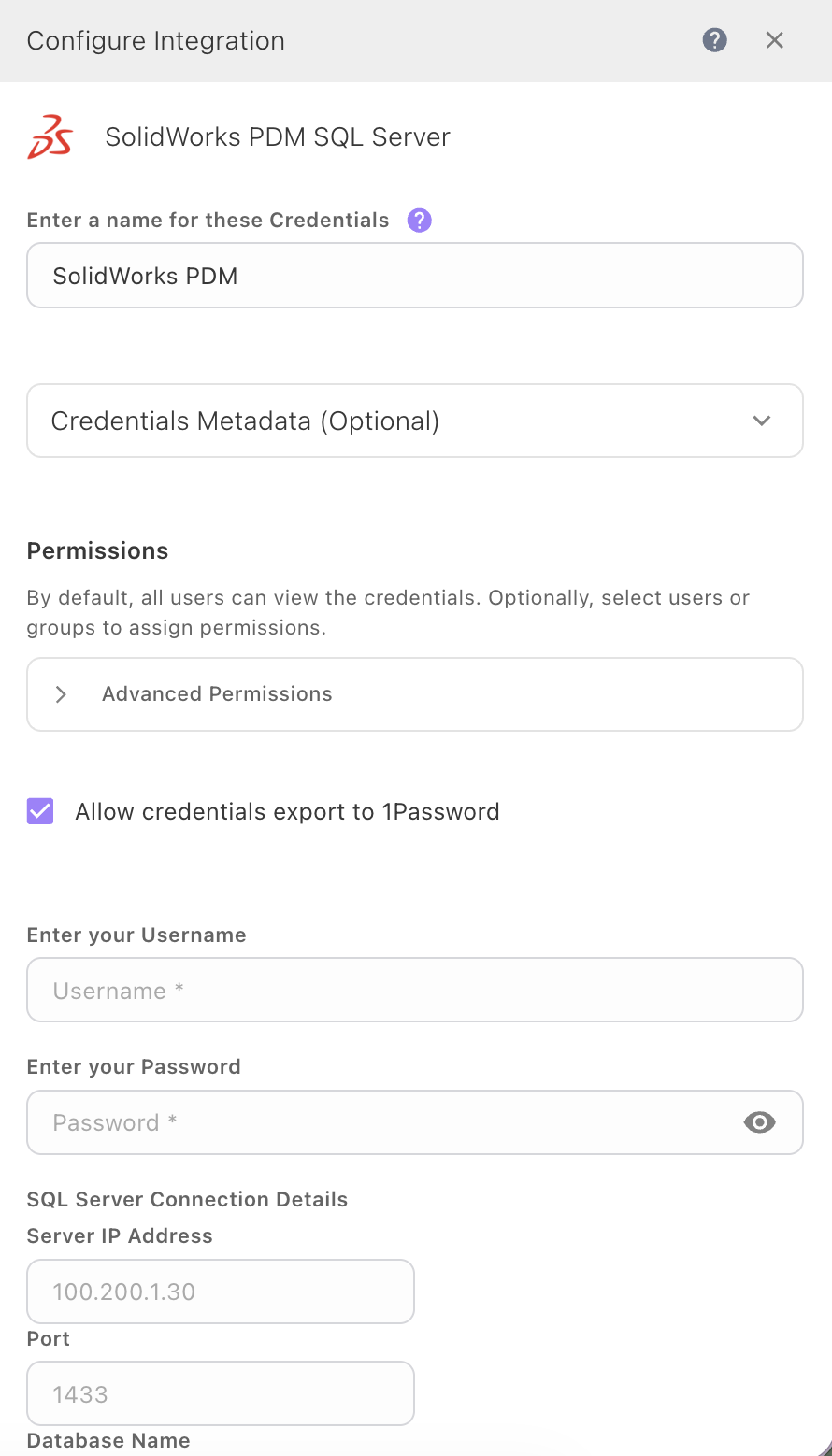
 **Solidworks PDM SQL Server.** Provide the username and password created above, the IP address of your server, port (typically `1433`) and the name of your database.
 .
2. Select
.
2. Select 