# Auto-update Jira data using formulas
Once you've set up your Jira to Smartsheet sync, you can access your Jira data from other sheets.
{% stepper %}
{% step %}
### Set up your sheet
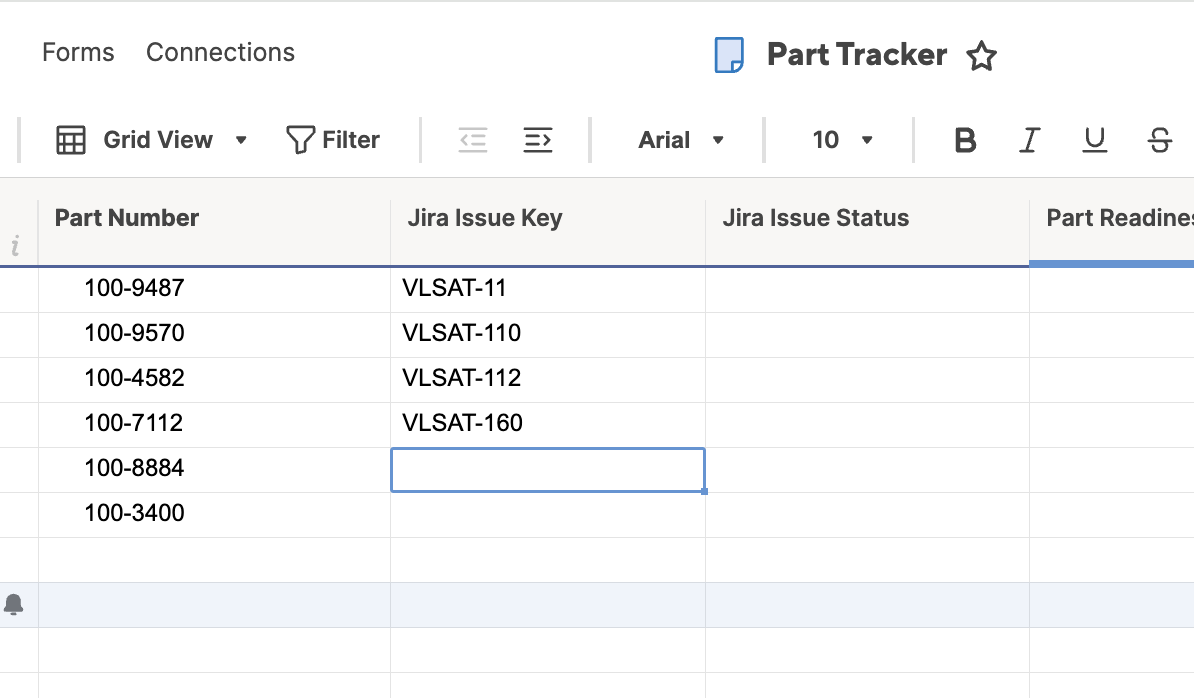
First, navigate to your sheet of choice and add a column for **Jira Issue Key**.
You'll then need to populate the column with the keys you're looking to reference.
For example, you might be tracking Part Numbers that have Jira tickets associated with them:
You can then use the INDEX and MATCH formulas to populate other columns.
Let's update the **Status** column according to the associated Jira key.
{% endstep %}
{% step %}
### Start an INDEX formula
In the first row of the **Status** column, type `=INDEX(` , then click **Reference Another Sheet** to select your `range`.
In the popup window, find your **Jira** reference sheet, select the Jira **Key** and **Status** columns, and click **Insert Reference.**
{% endstep %}
{% step %}
### For the row, use the MATCH formula
For the `row_index`, you'll use another formula: **MATCH**. This will identify the row in your search range that corresponds to the Jira key specified.
Type `MATCH([Jira Issue Key]@row,` to specify the search value.
Then click **Reference Another Sheet** to specify the range.
In the popup window, select the same Jira **Key** and **Status** columns and select **Insert.**
Close your MATCH formula with a final parenthesis.
{% endstep %}
{% step %}
### Finish your INDEX formula
Last, specify the `column_index` of your INDEX formula: 2. This tells the formula to look in the second column of your search range for the value, which is **Status.** Close your INDEX formula, and you should see your first Status appear.
Select the cell and drag down to populate the rest of the column.
You're done!
{% endstep %}
{% endstepper %}