> For the complete documentation index, see [llms.txt](https://docs.violetlabs.com/llms.txt). Markdown versions of documentation pages are available by appending `.md` to page URLs; this page is available as [Markdown](https://docs.violetlabs.com/features/reports/bom-comparison.md).
# BOM Comparison
Use the **BOM Comparison Report** to compare two different versions of a Bill of Materials (BOM). The tool displays the two BOMs side by side and highlights any differences.
## Getting Started
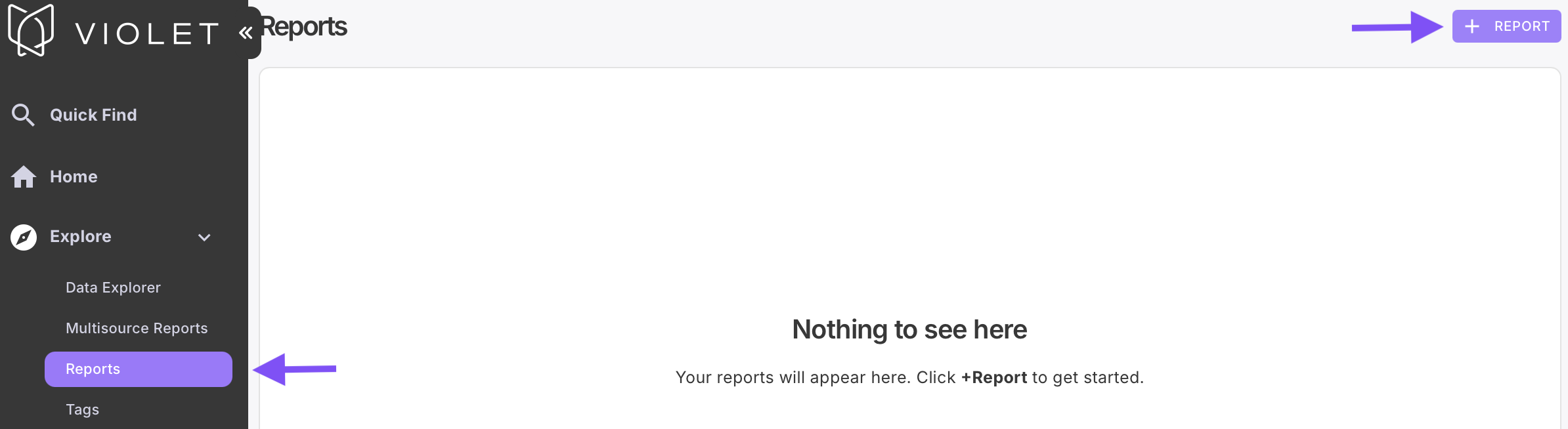
Access this feature from **Reports** in the navigation panel. Click **+ REPORT** then select **BOM Comparison.**
### Create and Display Reports
The comparison tool has two identical sections that let you search for and display BOMs side by side.
* Use the **search input field** on each side to locate Parts or BOMs.
* You can search by **Part Number** or **Part Name**.
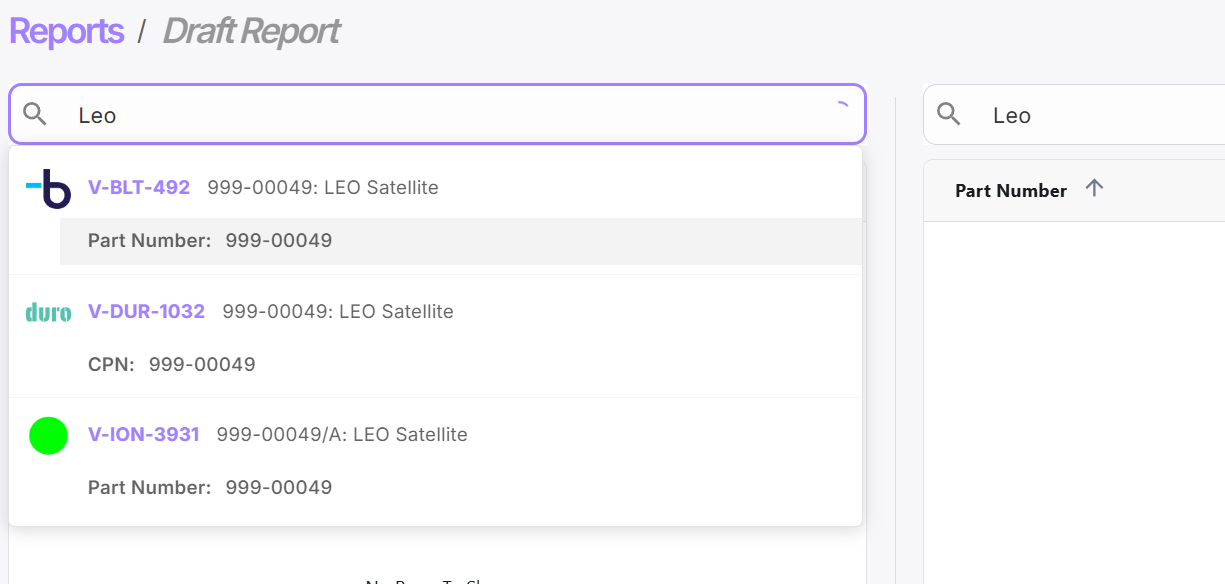
* The dropdown will suggest matching entities from available sources (for example, in the below image the same part number is available in Boltline, Duro, and ION).
* Select the desired part and source to populate the report.
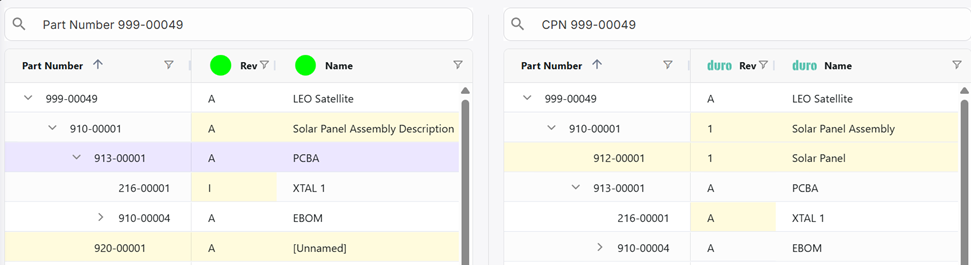
Once both sides are populated, **differences are highlighted in yellow.**
* If a Part exists in one BOM but not the other, the **entire row** is highlighted.
* Note, the system uses the full Part Path Number, which includes parent assemblies, to determine matches, not just the individual Part Number. Because a part can appear in multiple places within a BOM, the system compares each specific instance of the part at its exact location in the hierarchy.
* If a part number exists in both BOMs but there are differences in other fields (such as name, Revision, or Quantity), **the cells that do not match are** highlighted.
* Items that exist on only one BOM are highlighted on that side, but not flagged on the other, since the system is designed to show differences rather than mirror missing data.
#### Example
In the above example, the tool is comparing a BOM for ION (an MES) on the left and Duro (a PLM) on the right for the same object (LEO Satellite).
* Part 910-00001 - The Rev and Name cells are highlighted on both sides because there is a mismatch on both sides for both fields (**A ≠ 1** and **Solar Panel Assembly Description ≠ Solar Panel Assembly**).
* Part 921-00001 - This part (Solar Panel) only exists on the right side Duro BOM, and the therefore the entire row is highlighted on the Duro BOM. The absence of that part is not noted on the ION BOM.
## Report Columns and Filters
{% hint style="info" %}
Filters operate independently on each side. If you want the same filter applied to both, you need to set it manually on each side.
{% endhint %}
**Compare Level**
* The pulldown menu in the upper right allows you to adjust the level at which BOM comparison starts by skipping comparisons at the higher levels. This can be useful when a new parent part number (for a next generation system, e.g.) is pulled, but the children assemblies are largely intended to be the same (or purposefully updated).
* The Match and SubMatch columns, described below, will be recalculated when the comparison level is modified.
**Match? Column**
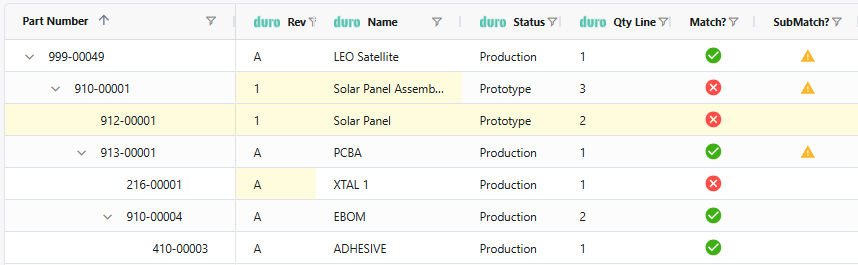
* Displays green check mark when a row fully matches the corresponding BOM row. A red X appears when it does not.
* You can quickly sort or filter the BOM based on match status.
* Set the filter to **false** to hide matched items and focus only on mismatched rows
* Set the filter to **true** to display only matching rows.
**SubMatch? Column**
* If the warning symbol is displayed in this column, there is a mismatch somewhere in the lower-level subassemblies.
**Status Column**
* Indicates release or lifecycle status, if it is available from the app you have chosen.
* Typically sourced from PLM systems.
* Filtering on this status may be useful if the app your are comparing against contains only Released or Production parts.†
## Exporting the Report
In the upper right of the report, click the download button and select your report options.
The export can be configured to take into account the selected comparison level, include the visible hierarchy only, or export only the differences.
The comparison level can be particularly important to apply, especially when you're comparing children of two different top-level part numbers. In that scenario, we recommend comparing at BOM level 1, and applying that to the exported report.
---
# Agent Instructions
This documentation is published with GitBook. GitBook is the documentation platform designed so that both humans and AI agents can read, navigate, and reason over technical content effectively. Learn more at gitbook.com.
## Querying This Documentation
If you need additional information that is not directly available in this page, you can query the documentation by asking a question.
Perform an HTTP GET request on the following URL with the `ask` and `goal` query parameters:
```
GET https://docs.violetlabs.com/features/reports/bom-comparison.md?ask=&goal=
```
`ask` is the immediate question: it should be specific, self-contained, and written in natural language.
`goal` is what the user is ultimately trying to achieve, the reason they need the answer. Sharing it helps GitBook give you a better, more relevant answer. A goal is most helpful when it describes the outcome the user wants rather than restating the question. For example, with `ask=how do I create an API token`, a goal like `automate deployments from our CI pipeline` lets GitBook tailor the answer to that use case.
The response will contain a direct answer to the question and relevant excerpts and sources from the documentation.
Use this mechanism when the answer is not explicitly present in the current page, you need clarification or additional context, or you want to retrieve related documentation sections.