> For the complete documentation index, see [llms.txt](https://docs.violetlabs.com/llms.txt). Markdown versions of documentation pages are available by appending `.md` to page URLs; this page is available as [Markdown](https://docs.violetlabs.com/es/funciones/paneles/personalizacion.md).
# Personalización
### Personalizar
Para personalizar tu panel, haz clic en **Editar diseño**.
En este modo, puedes cambiar el tamaño, renombrar, reorganizar o eliminar cualquiera de los widgets en tu panel.
### Widgets
Para agregar un nuevo widget, haz clic en **+ WIDGET**. Aquí puedes elegir agregar un `Tabla`, un `Gráfico`, o `Texto`.
#### Tabla
Seleccionar `Tabla` opción, y se abrirá esta ventana:
Debajo de **Fuentes de datos**, verás cualquier Exploración que haya sido guardada mediante el [Explorador de datos](/es/funciones/explorador-de-datos.md). Si este panel es visible públicamente, solo verás las Exploraciones que se hayan guardado como visibles públicamente.
Una vez que hayas seleccionado una Fuente de datos, puedes editar el título y ajustar los filtros para mostrar exactamente lo que necesitas. Cuando tu tabla esté formateada como quieres, haz clic en **+ AÑADIR WIDGET** para agregar la tabla al panel.
También puedes agregar tablas desde [Informes Multifuente](/es/funciones/informes/multifuente.md). (Para incluirlo en un panel público, debe guardarse y hacerse visible públicamente).
#### Gráfico
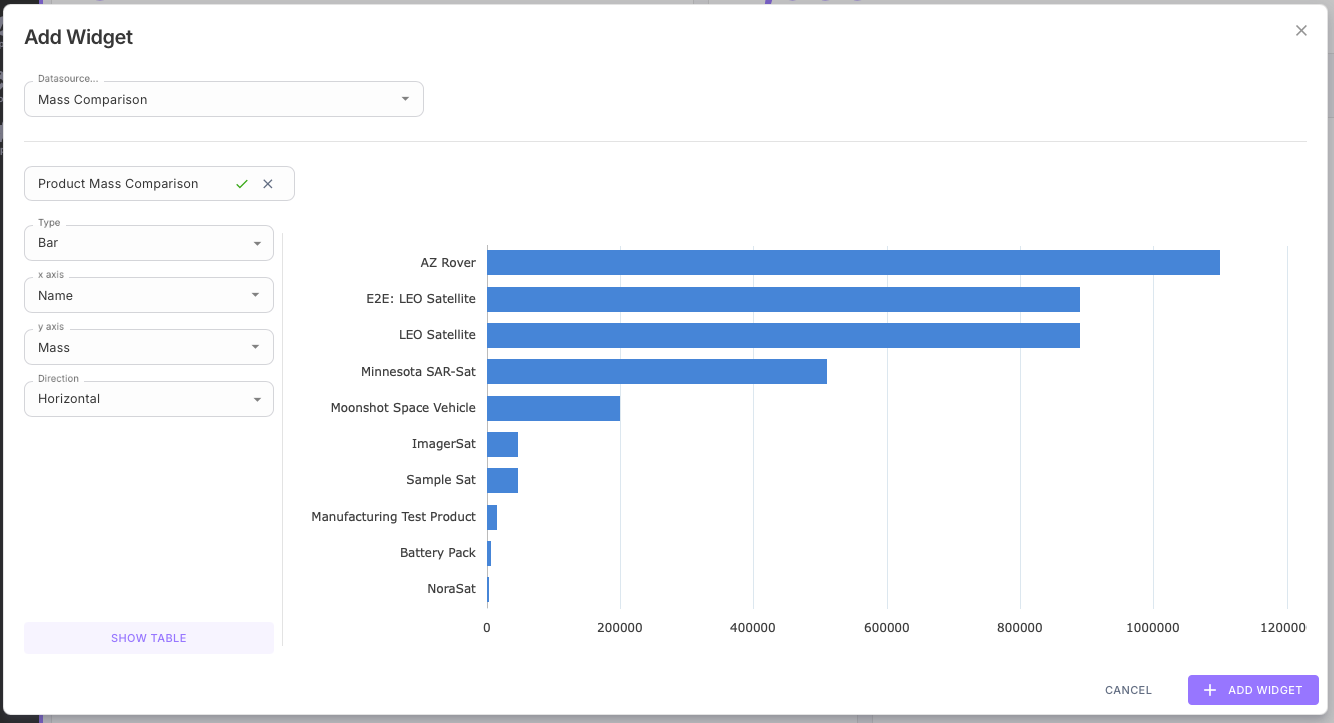
Si seleccionas `Gráfico`, se abrirá una ventana similar donde puedes seleccionar una Fuente de datos de las Exploraciones disponibles. Desde aquí puedes elegir un título, seleccionar el tipo de gráfico y escoger tus variables del eje x y eje y. También puedes hacer clic en **MOSTRAR TABLA** lo que te permite ver la exploración en forma de tabla, y filtrar o reordenar los datos que deseas ver en tu gráfico. Una vez que termines, haz clic en **+ AÑADIR WIDGET** para agregar el gráfico a tu panel.
Si deseas agregar un gráfico de un informe Multifuente a tu panel, como un gráfico de Velocidad de construcción, hay instrucciones sobre cómo hacerlo aquí: [Velocidad de construcción](/es/funciones/informes/velocidad-de-construccion.md).
#### Texto
Seleccionar **Texto** abrirá una ventana donde puedes crear contenido HTML estático para agregar a tu panel. Esto puede ser útil para añadir títulos, imágenes o simplemente describir el contenido de tus widgets.
---
# Agent Instructions
This documentation is published with GitBook. GitBook is the documentation platform designed so that both humans and AI agents can read, navigate, and reason over technical content effectively. Learn more at gitbook.com.
## Querying This Documentation
If you need additional information that is not directly available in this page, you can query the documentation by asking a question.
Perform an HTTP GET request on the following URL with the `ask` and `goal` query parameters:
```
GET https://docs.violetlabs.com/es/funciones/paneles/personalizacion.md?ask=&goal=
```
`ask` is the immediate question: it should be specific, self-contained, and written in natural language.
`goal` is what the user is ultimately trying to achieve, the reason they need the answer. Sharing it helps GitBook give you a better, more relevant answer. A goal is most helpful when it describes the outcome the user wants rather than restating the question. For example, with `ask=how do I create an API token`, a goal like `automate deployments from our CI pipeline` lets GitBook tailor the answer to that use case.
The response will contain a direct answer to the question and relevant excerpts and sources from the documentation.
Use this mechanism when the answer is not explicitly present in the current page, you need clarification or additional context, or you want to retrieve related documentation sections.